

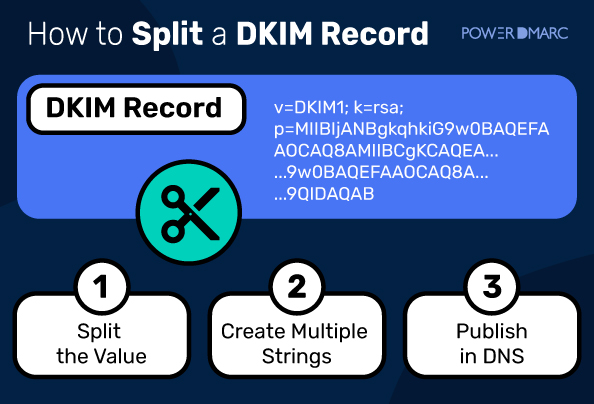
How to Split a DKIM Record

Key Takeaways
- Standard DNS strings are capped at 255 characters by RFC 1035.
- Secure 2048-bit DKIM public keys are typically 400+ characters, which makes it mandatory to split them into multi-string formats for strict DNS hosting providers.
- A common, critical misconception is creating two separate DNS records for the split chunks. Instead, you must publish one single TXT record containing both quoted strings within the exact same value field.
- A free client-side tool like the PowerDMARC DNS Record Splitter handles the math instantly and securely without your data ever leaving your browser.
Setting up email authentication is one of those tasks that feels like it should take five minutes until you hit a wall. You generate your secure 2048-bit DKIM key, head over to your DNS provider, paste it into a new TXT record field, and hit save.
Instead of a success message, your screen flashes an error. AWS Route 53 spits out a cryptic CharacterStringTooLong alert. Google Cloud DNS flatly tells you that you have “invalid record data.”
If you are running into a 255-character limit when adding your DKIM record, don’t worry; your key isn’t broken, and you don’t need to downgrade your security. You just need to split your DKIM TXT record into multiple strings the right way. Splitting a DKIM record is a standard, safe administrative procedure, and once it is published, DNS resolvers will automatically stitch the fragments back together seamlessly.
Let’s dive into exactly why this happens and how to fix it step-by-step using manual methods or an automatic DNS record splitter.
Why DKIM Records Need to Be Split
The need to split DKIM records stems from the foundational rules of the internet. Per RFC 1035 Section 3.3.14, a single character string within a DNS TXT record is limited to a maximum of 255 characters (or octets). This limit exists because the length of a string in a standard DNS packet is stored in a single byte, which means it cannot exceed 255 characters.
This structural limit becomes highly relevant depending on the length of your cryptographic keys:
- 1024-bit DKIM keys: These public key strings are short and usually fit snugly within the 255-character limit without any modifications.
- 2048-bit DKIM keys: These keys provide significantly stronger security but generate a base64 public key string that is almost always between 350 to 500+ characters long.
Because a 2048-bit DKIM key inherently exceeds the 255-character threshold, it cannot live inside a single continuous string.
How this boundary is handled depends entirely on your DNS hosting provider. As of 2026, the major platforms still fall into two camps:
- Strict Providers: Services like AWS Route 53, Google Cloud DNS, and Azure DNS strictly enforce RFC 1035 at the user interface level. If you paste a 300-character string, they reject it instantly.
- Automated Providers: Platforms like Cloudflare, GoDaddy, and cPanel often handle this formatting silently behind the scenes, splitting the record internally so you don’t have to do it manually.
Important Note: Splitting a record does not alter or break your DKIM signature. When an inbound mail server looks up your domain’s DKIM public key, its DNS resolver automatically concatenates (merges) the split strings back into one continuous string before processing the cryptographic handshake.
How to Split a DKIM Record (Step-by-Step)
To successfully split your record without invalidating your cryptographic data, you must follow structured formatting rules.
Here is a live look at an unsplit, raw 2048-bit DKIM record, a single continuous string that strict providers will reject, followed by the same key split correctly:
Before – one continuous string (410 characters, rejected):
v=DKIM1; k=rsa; p=MIIBIjANBgkqhkiG9w0BAQEFAAOCAQ8AMIIBCgKCAQEApTyGJMuHbEL31IeL2HPcHyGcFRl1SPnXNYvMIHa/2o76umfXfKm/r5kJP1VrT+1FJors/6ILi8IHn5kxsC7tVO/HbkQfyy/KV5zjR3j1twdTKWTddB+XhkAS1voQG6yyzyN9zHYIa4UOrGNATMuDJawTgsu8PO+799nKSNrh9UCauSDmLhuVtcqcYezdZ/tDDj8hYs5suKcNd8Zra9A9sKPxZ9W3qLy7zKUVQDT7S8sTQCBNR3YbDgbleph1QHt61QTC4XATWS8PHp9NHfYjFM5DI4pZj59fhZ5R1Py4oJe2JbmPTuSgR7cMy+UcU3zr1ZtoLuCr64CxqlIOdNKhiwIDAQAB
After – one TXT record, two quoted strings split at the 255-character boundary:
“v=DKIM1; k=rsa; p=MIIBIjANBgkqhkiG9w0BAQEFAAOCAQ8AMIIBCgKCAQEApTyGJMuHbEL31IeL2HPcHyGcFRl1SPnXNYvMIHa/2o76umfXfKm/r5kJP1VrT+1FJors/6ILi8IHn5kxsC7tVO/HbkQfyy/KV5zjR3j1twdTKWTddB+XhkAS1voQG6yyzyN9zHYIa4UOrGNATMuDJawTgsu8PO+799nKSNrh9UCauSDmLhuVtcqcYezdZ/tDD”
“j8hYs5suKcNd8Zra9A9sKPxZ9W3qLy7zKUVQDT7S8sTQCBNR3YbDgbleph1QHt61QTC4XATWS8PHp9NHfYjFM5DI4pZj59fhZ5R1Py4oJe2JbmPTuSgR7cMy+UcU3zr1ZtoLuCr64CxqlIOdNKhiwIDAQAB”
Splitting a 2048-bit DKIM key
v=DKIM1; k=rsa; p=MIIBIjANBgkqhkiG9w0BAQEFAAOCAQ8A…wIDAQAB
One continuous string – 410 characters that is rejected by AWS Route 53 / Google Cloud DNS
↓ split at the 255-character boundary
ONE TXT record — two quoted strings
“v=DKIM1; k=rsa; p=MIIBIjANBgkqhkiG9w0BAQEFAAOCAQ8A…”
chunk 1 · 255 characters
“…zrIZtoLuCr64CxqlIOdNKhiwIDAQAB”
chunk 2 · remainder (≈155)
exactly one space between the chunks with no spaces inside either chunk.
Step 1: Identify Your Full DKIM Record
You can log in to your email service provider dashboard (such as Google Workspace, Microsoft 365, SendGrid, or Mailchimp) to locate your generated public key. The record always begins with specific tags, typically following this exact layout:
v=DKIM1; k=rsa; p=[A very long Base64 string]
Alternatively, use our free DKIM record checker to look up your record in seconds:
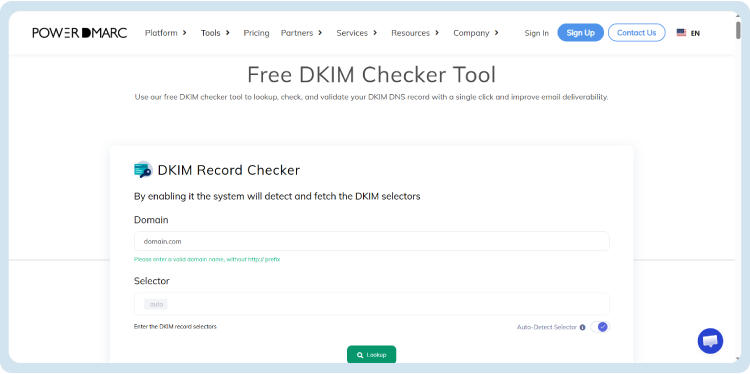
To confirm if splitting is truly required, copy the entire value and paste it into a basic text editor to check the total length. If the character count is over 255, you must split it.
Step 2: Split the Key Value into 255-Character Chunks
You have two choices to divide your record: the manual math route or using an automated utility.
The Manual Method
Open your text editor and count out exactly 255 characters from the beginning of your record (including the v=DKIM1; k=rsa; p= prefix). Break the string at that exact 255-character boundary.
You must wrap each individual chunk inside its own pair of double quotation marks (“”). Crucially, you must ensure there are no spaces inside the chunks, but there must be exactly one single space separating the closed quotes of the first chunk and the open quotes of the second chunk.
The Automatic Method (Recommended)
To eliminate human error, skip the manual character counting and use PowerDMARC’s free DNS Record Splitter tool.
- Go to the tool page.
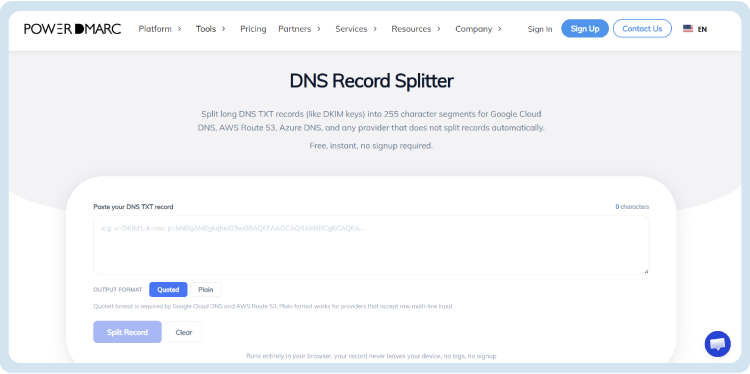
- Paste your full, unsplit DKIM TXT record into the input area.
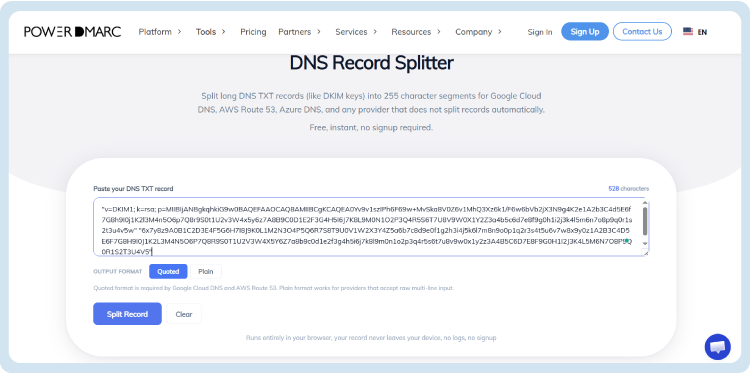
- Select Quoted format (required by strict providers like AWS and Google).
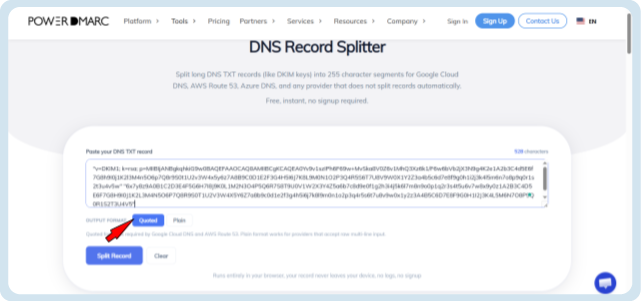
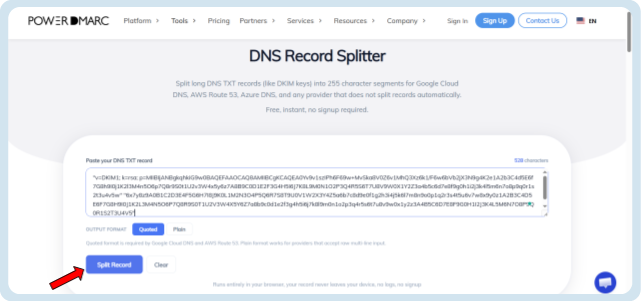
- Click Split Record to instantly generate correctly formatted strings.
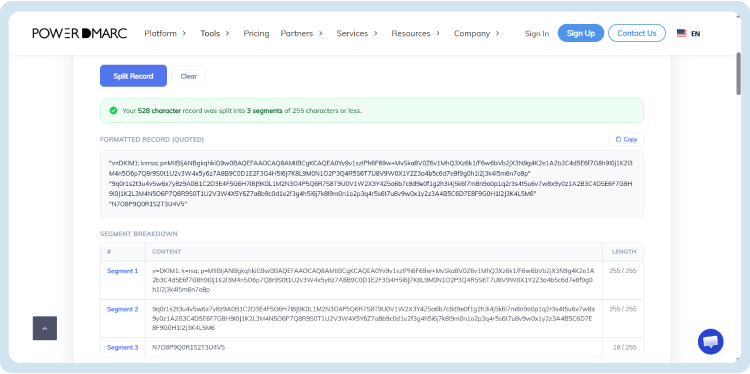
- Here is how the result should look:
Step 3: Add the Split Record to Your DNS
A widespread mistake among administrators is attempting to create two separate TXT records in their DNS panel, one for each chunk. Do not do this; it will completely break authentication.
You must add one single TXT record. In your DNS management interface, paste both quoted strings into the single Value / Data field. For most standard providers, separate them by a single space:
“v=DKIM1; k=rsa; p=CHUNK1” “CHUNK2”
(Note: If you are using AWS Route 53, skip the single-line space format and follow the platform-specific line-break method in the provider section below.)
Step 4: Verify the DKIM Record
Once you save your changes, allow time for DNS propagation across the web. While this often updates within 5 to 30 minutes, it can occasionally take up to 48 hours depending on your zone’s TTL (Time to Live) settings.
To make sure everything is working perfectly, use PowerDMARC’s free DKIM Lookup tool to verify that your record is published and resolving cleanly.
Pro Tip: If you want to double-check your work before waiting for DNS propagation, copy your final constructed string and paste it back into the DKIM record splitter tool to verify that neither segment exceeds the 255-character limit.
A passing result will return your full, unified cryptographic key with status green. If you see a failure, look for issues like truncation (missing data), a missing secondary chunk, or syntax errors from unclosed quotation marks.
Splitting DKIM Records by DNS Provider
Different DNS control panels handle multi-string TXT inputs in distinct ways. Here is how to handle the setup across the four most common platforms:
AWS Route 53
Amazon Route 53 enforces boundaries rigidly and throws a CharacterStringTooLong error if any individual string lacks quotes or exceeds 255 characters. Because DNS resolvers concatenate sequential strings with absolutely no spaces between them, entering a literal space between your quotes on a single line can accidentally corrupt your cryptographic key.
- Console Method: Inside the Route 53 console Value box, enter each chunk as a separate quoted string on its own individual line. Do not leave a space at the end of the line. Route 53 natively treats consecutive lines inside a single text field box as distinct strings within a single TXT record and stitches them together during a lookup.
- API/JSON Method: If you deploy infrastructure via code or the AWS API, structure your record input as a JSON array where each split chunk is an independent array element: [“v=DKIM1…”, “…CHUNK2”].
Google Cloud DNS
Google Cloud DNS will display a generic “invalid record data” warning if you attempt to submit an unformatted long string. To resolve this inside the Google Cloud Console UI, do not paste them on a single line. Instead, wrap each chunk in double quotes and use the Add item button to generate multiple sequential data fields within the same resource record set.
Cloudflare
Cloudflare features an intelligent backend that parses long TXT strings automatically upon saving, dividing them down into RFC-compliant segments without user intervention. However, relying on automated parsing can occasionally create edge cases with complex keys. The best deployment practice remains manually pasting your pre-split, quoted strings directly into the Cloudflare dashboard.
cPanel / WHM
Older cPanel Zone Editor versions maintain a hard 255-character layout cap inside standard text input fields. If your primary interface refuses to accept the key length, navigate over to the Advanced DNS Zone Editor. This expanded mode provides the structural flexibility required to input pre-split, multi-chunk TXT data fields smoothly.
Common Errors When Splitting DKIM Records
If you have deployed your split record but authentication checkers are flagging your domain, look for these three common configuration mistakes:
1. DKIM Signature Fails After Splitting
- The Cause: A space was accidentally inserted inside one of your base64 cryptographic chunks rather than strictly between the closed and open quotation marks.
- The Fix: Copy your raw key into a blank file, strip out all internal whitespace from within the p= value string entirely, and perform the split process again.
2. DNS Shows Only a Partial Key
- The Cause: The second chunk was saved as an entirely separate, secondary TXT record on your domain host rather than combined inside the first record.
- The Fix: Delete the secondary record entirely. Edit your primary DKIM TXT record so that both quoted strings sit together inside the single value field.
3. Record Exceeds 255 Characters After Split
- The Cause: The split point was calculated incorrectly, which left one of the two chunks slightly over the 255-character limit (often by counting the v=DKIM1; prefix incorrectly).
- The Fix: Re-split your record at character 255 exactly, or let an automated DNS record splitter handle the counting for you.
How Splitting DKIM Affects DMARC
A common concern for IT managers is whether splitting a public key changes how DMARC processing handles incoming messages.
When a DKIM record is split accurately, it behaves identically to an unsplit record. Because receiving email servers reassemble the chunks back into a single string during lookups, your DKIM signatures validate seamlessly, which leaves your DMARC alignment unaffected.
However, if your split record is malformed, or formatted incorrectly, the consequences are immediate:
- The receiving email server won’t be able to reconstruct your public key.
- DKIM authentication will fail.
- DMARC will be forced to fall back entirely onto your SPF (Sender Policy Framework) alignment.
- If your SPF alignment also fails (or if your DMARC policy requires both protocols to align), your legitimate corporate emails will be routed to spam folders or may be rejected outright.
Before relying heavily on your DMARC policy enforcement, you must validate your public-facing DKIM keys after making any DNS modifications.
Summing Up
Splitting a DKIM record is a necessary administrative step when managing secure 2048-bit keys on strict DNS providers like AWS Route 53 or Google Cloud DNS. It is a safe and standard procedure that is easy to execute once you know the basic formatting rules.
Whenever you are updating your records, remember the core rules:
- Divide your string at the 255-character boundary.
- Wrap each chunk in double quotes.
- Keep everything inside one single TXT record (separated by a space for standard providers, or placed on separate lines for strict interfaces like AWS Route 53).
Don’t guess on the character counts and risk email downtime. Skip the manual math and format your key instantly using the Free PowerDMARC DNS Record Splitter Tool, with no signup required.
Frequently Asked Questions
What is a DNS record splitter?
A DNS record splitter is a utility designed to break down a long DNS TXT record into individual 255-character segments. This formatting step is necessary so that your records can be saved accurately within strict DNS hosting providers that do not perform internal string splitting automatically. The absolute value of your record remains entirely unchanged; it is simply formatted as structural, shorter blocks that receiving systems link right back together upon a lookup.
Which DNS providers require manual record splitting?
Several major enterprise providers strictly enforce the 255-character limit at their interface level, which requires you to pre-format long text values before saving:
- AWS Route 53: Throws a CharacterStringTooLong error message unless long strings are split into separate quoted blocks.
- Google Cloud DNS: Rejects long continuous strings completely, which returns an “invalid record data” warning.
- Azure DNS: Requires manually divided and split text fields when provisioning strings directly through the Azure Portal dashboard or Azure CLI.
- DigitalOcean: Does not automatically break down long TXT entry streams within its standard web control panel.
Why do I need to split my DKIM record?
The primary trigger for splitting a TXT record is deploying a highly secure 2048-bit DKIM public key. While 1024-bit keys are short enough to sit inside a single string, a 2048-bit key inherently contains between 350 to 500+ characters of cryptographic base64 data. Because RFC 1035 Section 3.3.14 caps a single continuous string at exactly 255 octets, these long keys must be broken into distinct segments to fit inside the standard DNS storage architecture.
Will splitting my record alter its data or break email validation?
No. Splitting a long TXT record does not damage or alter its cryptographic value. When an inbound receiving mail server requests your domain’s authentication settings, its DNS resolver automatically reads through the split segments and concatenates (merges) them back into one continuous value with no delimiters. The split formatting exists purely as a backend storage detail; the evaluated payload remains identical.
What is the difference between Quoted and Plain output formats?
- Quoted Format (Recommended): Wraps each individual 255-character segment in its own pair of double quotes (“chunk1” “chunk2”), either separated by a space on a single line or entered into sequential data fields/lines. This exact layout is required by strict interfaces like AWS Route 53 and Google Cloud DNS to prevent key corruption.
- Plain Format: Breaks the long line into separate blocks without adding enclosing double quotes or extra whitespace punctuation. This layout is intended for modern control panels that accept raw multi-line string streams or self-hosted BIND (Berkeley Internet Name Domain) system environments.
Is it safe to use this tool with sensitive keys or private records?
Yes. The PowerDMARC DNS Record Splitter executes entirely inside your local web browser using client-side scripts. Your entered text strings never leave your device, no data is sent across the internet to external processing servers, and no tracking logs or mandatory signups are required. Furthermore, it is important to note that the tool is designed exclusively for public configurations, such as public DKIM keys, SPF includes, DMARC policies, or domain verification records, which are already accessible publicly on the web. Private signing keys should never be pasted into any online tool.

The post How to Split a DKIM Record appeared first on PowerDMARC.
*** This is a Security Bloggers Network syndicated blog from PowerDMARC authored by Yunes Tarada. Read the original post at: https://powerdmarc.com/split-dkim-record/
