

Destroy your laptop without ramifications!

Don’t let the introduction scare you. This post is actually more appropriate for less technical readers who have had a computer failure and lost data.
While on a recent business trip the hard drive light on my laptop remained solid at all times. As time went on Windows slowed to a crawl and became unusable. I looked at the resource monitor to see what was causing the disk to spin so much so that I could kill it, but there weren’t even any IO hits. When I reboot the computer I get a message Detection Error on HDD and Windows won’t start at all any more.
It was basically over. While we were able to mount it with Ubuntu and recover some of the data left there I was very glad to have committed to synchronizing data consistently enough to not lose anything.
Everyone seems to be very well aware of all the cloud solutions available. Google Drive, Microsoft SkyDrive, EverNote, Amazon Cloud Drive, Dropbox, Box.net, the list goes on. While these services are great they may not be the most appropriate place for your work related data. Unfortunately most corporate environment do not have the solutions (DLP) to prevent us users from allowing sensitive corporate data from leaving the work network. All of your work devices like laptops, phones, and tablets should be considered an extension of the corporate network. A couple of issues with these services are; a) privacy – what happens if they get compromised. And b) availability – does anyone read the end user license agreement? Who ~owns~ the data once you put it there and what are they allowed to do with it. There are probably lots more. For non-confidential information they can definitely be great.
A potential solution to the problem could be right under your nose. Most corporate environments provide you with a file share sitting on a server in your corporate environment. If you open up My Computer in Windows it will likely show up on the left side of the window under Computer.

What you can do is make this file share folder your new home folder where you store everything. If you browse to that network share and right click on it you will have the option to make the folder available offline. That will synchronize all of the files from that network share to your PC. Say you create a new folder on the network share called Documents, you could then right click on the Documents folder on your PC as opposed to the network share, right click on it and select properties. Then you will have the option to Include a folder…
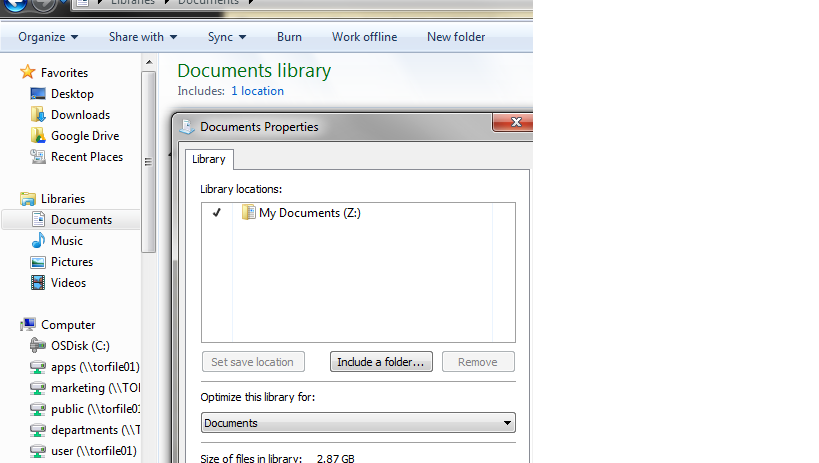
Choose the network share version of your documents folder. Now when you go to Documents on your PC and make changes those changes will be automatically synchronized to your corporate network share whenever you connect to the network. You now have instant and consistent and working backups of all your data. Everyone want to take their laptop by the monitor and swing the rest at a nice hard surface once in a while. Now you can annihilate that hardware and keep all the data! 😉
*** This is a Security Bloggers Network syndicated blog from Insecurity authored by asdfasdfasdfasdf. Read the original post at: http://stephenperciballi.blogspot.com/2012/05/destroy-your-laptop-without.html
